Put a capital A beside a capital V. Give the two letters perfectly ordinary rectangular spaces. The result can look as though a small hole has opened between them. Their sloping edges create a pocket of white that a ruler measures differently from the way a reader experiences it.
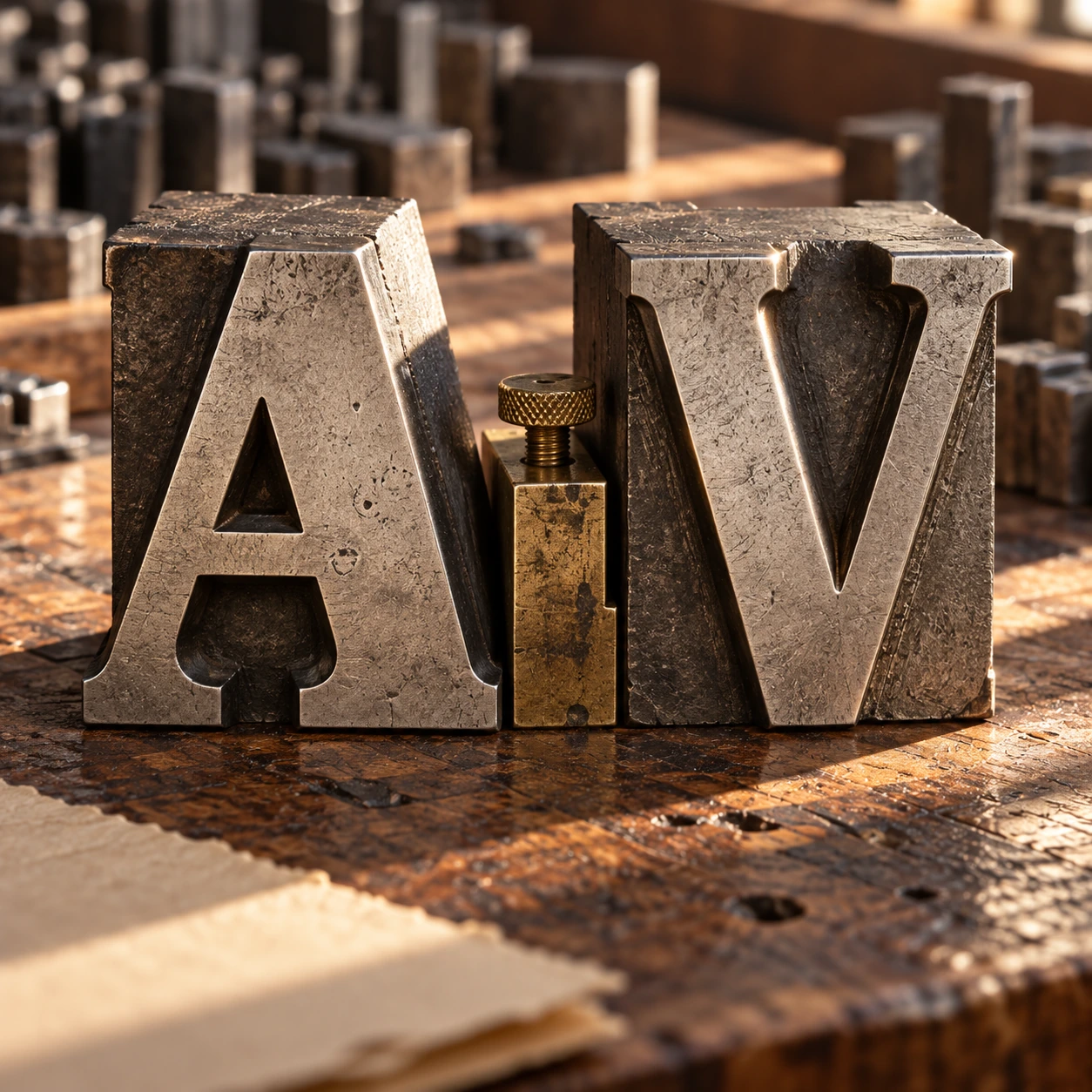
Kerning adjusts the relationship between particular neighboring glyphs. It is a small intervention with a large perceptual effect, especially in headlines, titles, and logos. The aim is not equal numerical gaps. It is a coherent rhythm of forms and spaces.
Begin by looking at the empty shapes
A letter occupies more than the black shape you see. A font supplies metrics that position glyphs and advance the writing position for the next one. Those spaces allow ordinary text to run without a designer placing every character by hand. But some combinations need particular attention.
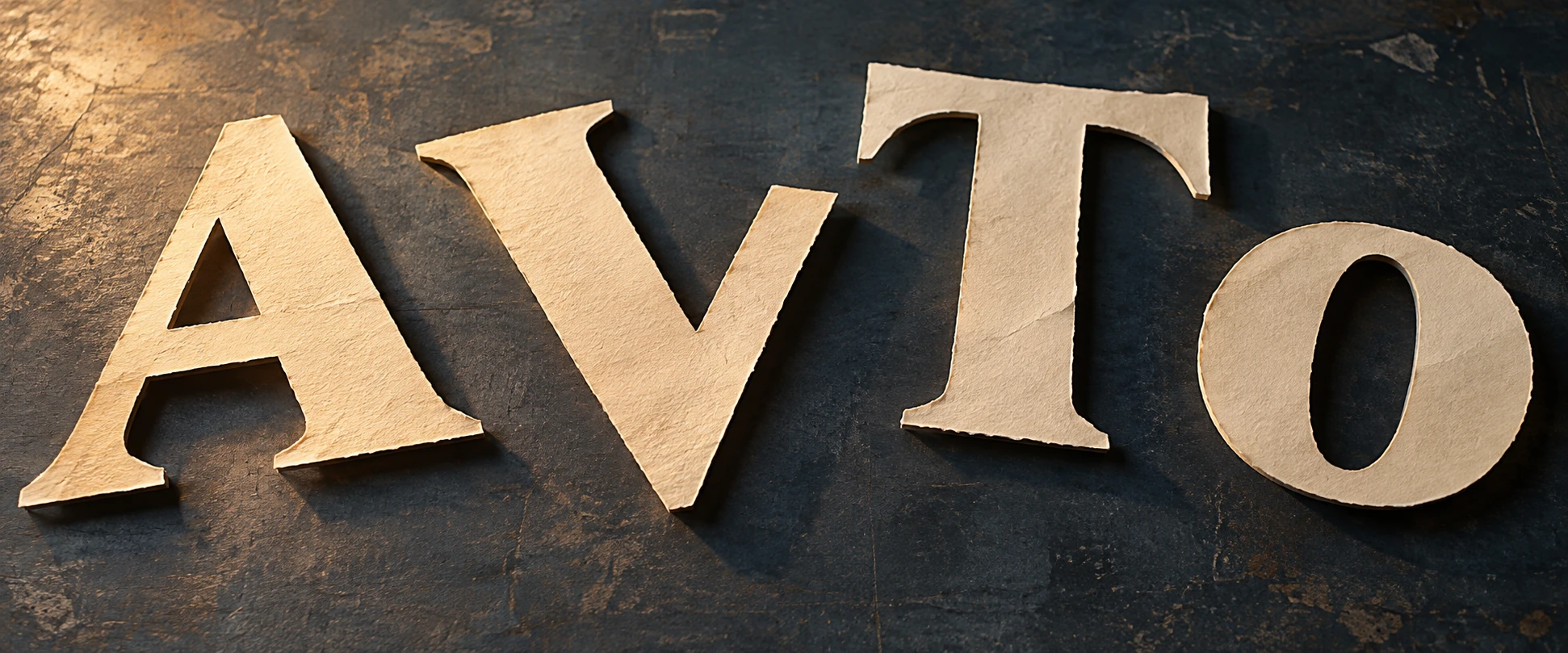
Compare AV, To, and HH. The first pair has facing diagonals. The second can tuck a round letter beneath an overhanging top stroke. The third places relatively straight sides near one another. Equal treatment of their bounding boxes does not automatically create equal-looking intervals.
The OpenType positioning documentation distinguishes placement from advance and describes pair adjustments. This is the underlying reason a font can carry instructions for particular combinations. The visible gap is an outcome of shapes and positioning, not a single universal width called “the space between letters.”
Adjust one pair of letters
Choose pair, font, size and manual gap; compare with normal browser kerning.
Try the pair before the paragraph
The spacing tool disables automatic kerning for its controlled two-letter sample. Choose AV or To, then adjust the second glyph’s relative position. A separate reference shows the browser’s normal font behavior. The tool uses locally available font families, so the exact shapes can vary between devices.
Move too far in each direction before settling on a preference. An excessive gap makes the pair feel separated. Excessive tightening can make the forms collide or create a new shape that distracts from the letters. The useful setting is contextual, and it may change with the font, size, or neighboring letters.
Now reduce the displayed size. An adjustment that feels elegant at a huge scale can feel cramped when small. Looking only at an enlarged screenshot is a poor final check for a book title, a phone interface, or a printed label that will be read at a different size.
Three controls that answer different problems
Kerning changes particular pairs. Tracking changes spacing across a selected run of text. Word spacing changes the gaps between words. These controls can interact, but they are not interchangeable remedies for every uneasy line.
Adobe’s explanation distinguishes built-in metrics kerning, shape-based optical kerning, and manual adjustments. Metrics use information supplied with the font. Optical methods inspect neighboring forms. Manual work gives the designer control over a specific relationship.
Suppose a five-letter title has one conspicuous gap. Increasing or decreasing tracking changes all the intervals, including the ones that already look balanced. A local pair adjustment may solve the actual problem more precisely. Conversely, a whole line that feels too loose may need a range-level decision rather than a dozen unrelated pair fixes.
A short editorial exercise
Write an invented title such as “A Visit to Tomorrow” in the actual font and size intended for publication. The words are only a test phrase; they are not a logo or a supplied design asset. Read it first as language, then look away and return to the spaces.
Which interval attracts attention? Is it a gap between two letters, a word space, or a line break? Identify the kind of problem before moving anything. A title can look unbalanced because a short word is stranded on the next line even when every letter pair is well spaced.
Next compare the line at its intended reading size and at one smaller size. If the font has built-in kerning, let that be the starting point. Make one purposeful change, then compare again. A long sequence of unrecorded tiny nudges can leave you unable to explain why the current version is better.
Finally read the title in context. Place it above a paragraph, beside its cover image, or inside the available column. The surrounding space changes the impression. A pair that looks correct in isolation can still sit within a line that feels heavy on one side.
Why a browser can show a different gap
Web typography depends on which font actually loads, its available features, the browser’s shaping behavior, and the selected styling. A substitute font can change both letter shapes and metrics. A screenshot therefore records one rendered result, not a guarantee about every reader’s device.
The W3C font specification defines the control over using kerning information. In the tool, the manually spaced sample is deliberately split into separate glyph elements to expose the movement. That demonstration is not a recommendation to build ordinary running text one letter at a time.
Complex writing systems can require contextual shaping and positioning that go far beyond the familiar Latin AV example. Treating all text as isolated decorative letters can break those relationships. The narrow exercise here teaches a visual spacing question; it is not a general prescription for typesetting every script.
The best adjustment is usually quiet
Readers rarely congratulate a paragraph for its absence of distracting gaps. They simply continue reading. That is the useful standard: does the spacing support the word, the line, and the intended pace without repeatedly calling attention to itself?
Once you notice the negative shapes around letters, a title becomes a set of relationships rather than a row of symbols. The craft is in making those relationships feel deliberate. Sometimes the most visible improvement is the removal of a tiny interruption you had not previously known how to name.
Follow the evidence: Adobe: kerning and tracking; Microsoft: OpenType glyph positioning; W3C: CSS font kerning.
Explore all 80 new articles · Browse the complete illustrated collection
Explore more art, ideas, experiments, and independent projects at Incoprea.